
Connect a personal inbox to HubSpot to send one-to-one emails from the CRM, log email replies to the CRM, send sequences emails, and install HubSpot Sales to access the sales tools in your inbox. Some HubSpot tools require a personal inbox connection. You can connect multiple personal inboxes to HubSpot that your user can use to send emails.
A team email address is an email address that multiple users have access to and use to communicate with customers. You can connect a team email address to the conversations inbox so your team can view, manage, and reply to emails in one place. Learn how to connect a team email address to HubSpot, or review this guide about the different inbox connections in HubSpot.
Connect your Office 365 account
Please note: you cannot connect a shared Office 365 mailbox to HubSpot.
- In your HubSpot account, click the settings icon settings in the main navigation bar.
- In the left sidebar menu, navigate to Integrations > Email integrations.
- Click Connect personal email.
- Next, click Office 365.
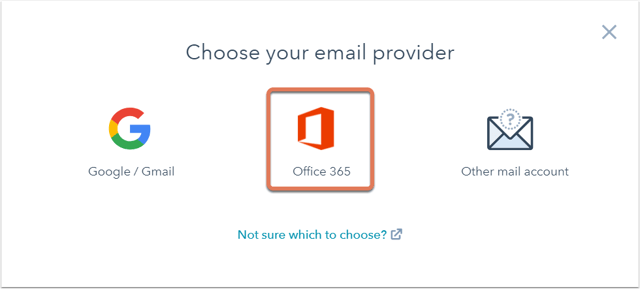
- Read through what to expect when you connect your Office 365 inbox to HubSpot, then click Continue.
- You'll be prompted to log in to your Office 365 account. Enter the email address of the Office 365 account you want to use. If you're already logged into one or more of your email accounts, choose the account you want to connect.
- You'll be redirected back to your settings where the connection will be verified and completed. A dialog box will appear to inform you that your Office 365 inbox is now connected to HubSpot.