
There are actually many ways a contact may be added to your HubSpot account
1. Conversion from your website
If a contact has gone to your website and filled out a form or you're engaging in a lead source such as Zillow or Realtor.com with an integration into HubSpot the lead is automatically added to HubSpot under your ownership with all the appropriate values assigned such as "Role = Borrower" - you do not need to do anything!
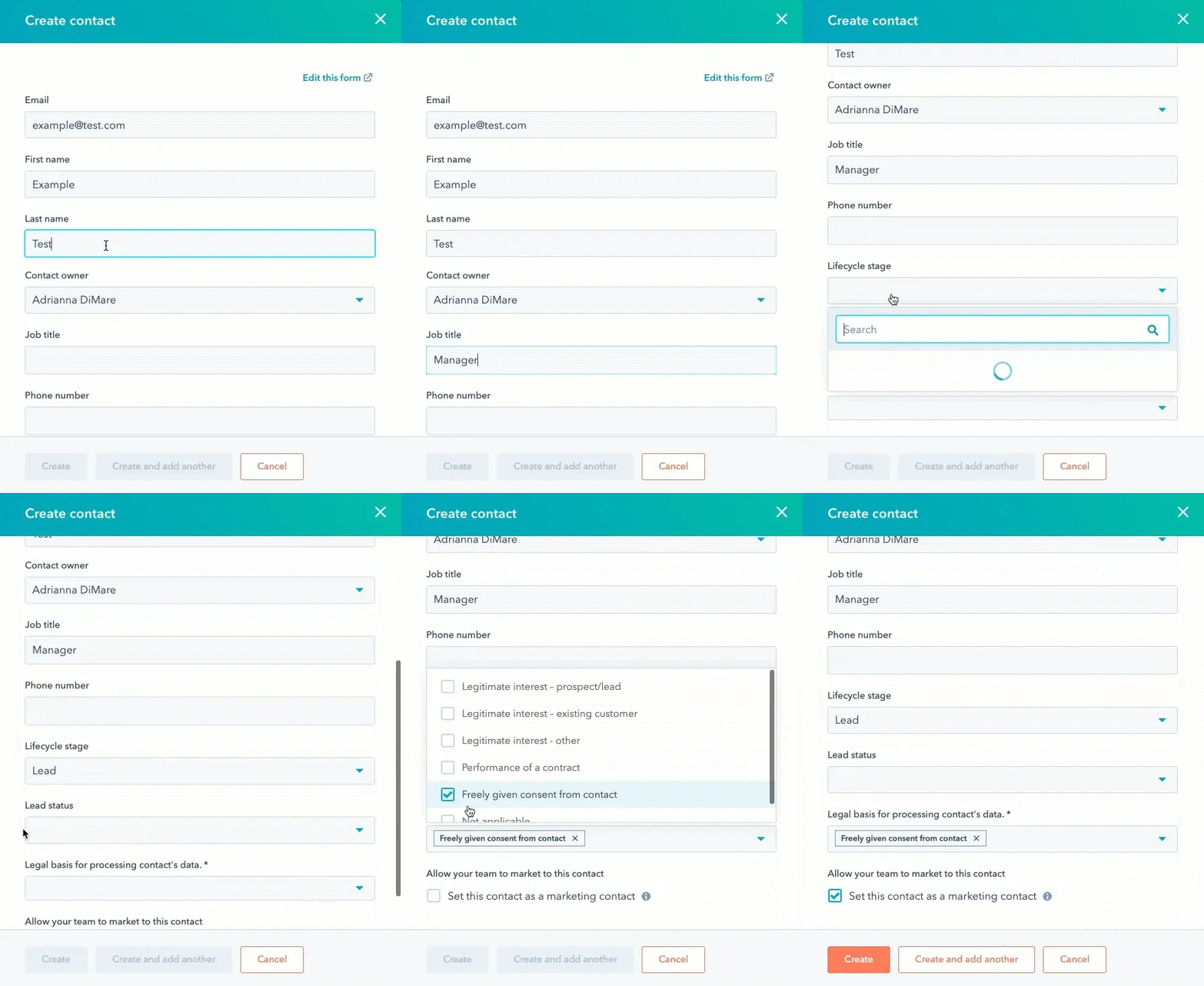
2. Manually entering contacts on HubSpot's website
- In your HubSpot account, navigate to CRM > Contacts.
- In the upper right, click Create contact.
- In the right panel, enter the properties of the contact. Once you've filled in the contact's name and/or email, additional fields will appear. To customize the properties that appear, click Edit this form at the top.
Please note: it is not recommended to add contacts to the CRM without an email address because HubSpot uses the email address to deduplicate contacts and automatically associate contacts with companies.
3. Using the HubSpot mobile app business card reader
Have a stack on business cards? No problem! With the HubSpot mobile app you can can them with your phone's camera and have a good amount of your contacts' into port into your HubSpot account
4. Bulk import from a spreadsheet
If you have a large number of contacts that you would like to import, the Marketing Department would love to help! Simply enter your contacts into this spreadsheet (or retitle the column heads in an existing spreadsheet to match it to insure proper mapping) and send it to marketing@jetdirectmortgage.com and we will import them for you!
Tip: for best results at the barest minimum, make certain there are values for the following fields
1. First name and last name
2. email address (HubSpot uses email as a unique identifier)
3. Role (this dictates the type of messaging your contact will receive; ie "Borrower" will receive B2C messaging while "Realtor" will receive B2B)